In 2026, AI agents are no longer a distant future – they are being implemented across industries, companies, and daily workflows. You've probably heard the term more times than you can count. But most explanations either oversimplify it into "a chatbot" or overcomplicate it with technical architecture diagrams. The definition is not that complicated: an AI agent is software that can take actions on your behalf. It doesn't just answer questions, but actually does things. It can browse the web, send emails, fill out forms, run searches, and trigger other tools, without your continuous input.
The difference between a regular AI (like ChatGPT) and an agent is autonomy. While a regular AI responds, an agent acts. You give it a goal, and it figures out the steps to get there. Think of it like the difference between asking a colleague a question and delegating a task to them. Asking questions gives you information; delegating tasks gets them done.
How to set up your first AI agent
While it may sound daunting, configuring an agent for the first time is not very difficult. You don't need to write any code or be an IT specialist – the same AI you will use as your agent's “brain” can walk you through the necessary steps.
Your first agent: Claude or ChatGPT in VS Code
VS Code is a free code editor built for developers, but it has become one of the most practical environments for running AI agents, because it can connect to your files, accounts, and apps from one place. You don't need to write any code to use it this way.
To get started, install VS Code, then open the Extensions panel on the left sidebar. Search for your preferred AI – Claude Code (by Anthropic) or Codex (by OpenAI) – and install it. The agent will appear as a panel inside the editor.
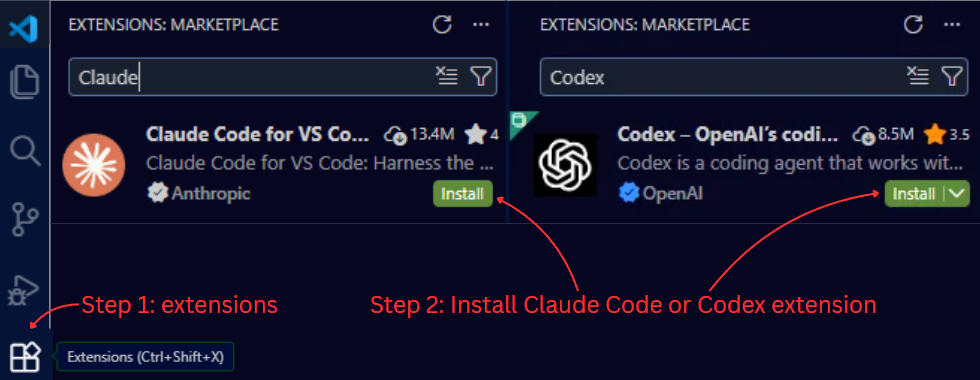
All you need to do is log in. From there, you interact with it conversationally. The difference from a regular chatbot is that it can act on what you tell it: open a file, read its contents, make edits, send it somewhere. Unless you choose to give it full control, at each step it shows you what it's about to do and waits for your approval before proceeding. You have the option to approve each action the agent takes.
One thing worth setting expectations on: when you first start, the agent knows nothing about you, your work, or your context. Treat it like a capable new colleague on their first day – it needs direction, not just tasks. The more context you give it, the better it performs. For this, it's useful to create an introduction file: what your company does, what your position is, what your main responsibilities and goals are. That helps the agent complete tasks with the most relevant information in mind.
Connecting your tools
Once your agent is set up in VS Code, you can connect it to the other tools you use daily: email, cloud storage, project management, communication platforms. The agent itself can walk you through each integration step by step.
Common connections include Zoho Mail, Google Drive, Jira, and Slack, but most major platforms are supported. Once connected, the agent uses them the same way you would: it can write and send an email, find and read a file in your Drive, create or update a Jira ticket, or post a message to a Slack channel, all from a single instruction.
A practical example: ask your agent to find last month's report in Google Drive, summarize the key points, and email the summary to a colleague. Each of those steps happens in sequence, with the agent showing you what it's doing along the way.
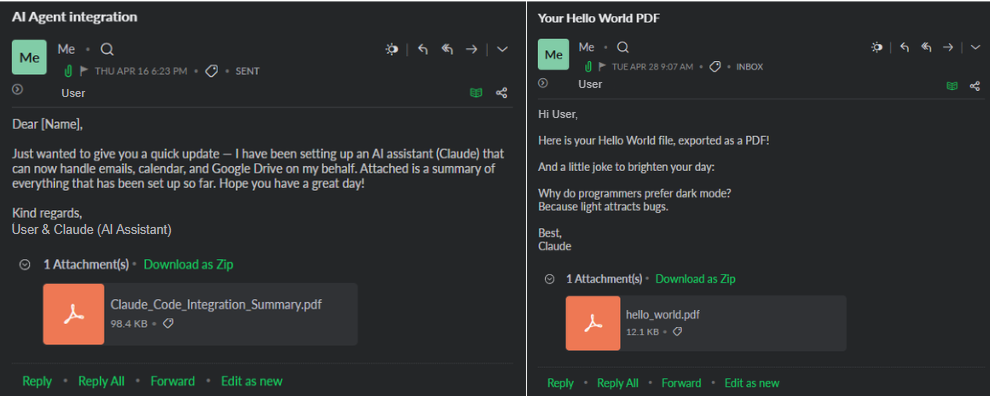
It's important to remember to test before relying on any integration for important tasks. Agents occasionally need a few attempts to handle a new type of action correctly, especially with tools they haven't used in your specific setup before. It's best to test its skills by sending emails to yourself – then you can see the exact output without spamming your colleagues with incomplete emails.
Common beginner mistakes using agents
Just like any other tool, an agent is only powerful if it's used correctly. Most early frustrations come down to a handful of the same patterns.
- Giving vague instructions. An agent is only as good as the goal you give it. "Help me with my emails" gives it nothing to work with. “Clean up my files” leaves the agent to decide what that means, potentially leading to losing important files. "Check my inbox, flag anything from clients that needs a response, and draft replies for each one" is actionable. The more specific the instruction, the better the output.
- Trusting it too early. The agent will sometimes get things wrong, especially in the first few weeks of use. Review its work the same way you would review work from someone new to the job. Until you've confirmed the agent's work matches your standards, don't give it full access to important tasks.
- Giving it access to everything at once. Start with one or two integrations and expand gradually. Connecting all your tools on day one makes it harder to catch mistakes and understand what went wrong when something does.
- Expecting it to learn automatically. The agent doesn't improve on its own between sessions. If it made a mistake, tell it explicitly what went wrong and how to handle it differently. Ask it to save its most important lessons into a memory file, and ask it to read the file every time you start a new session to ensure your progress brings actionable lessons.
- Trying to automate the wrong things first. Complex, high-stakes tasks are not a good starting point. Begin with something low-risk where a mistake is easy to catch and fix, like a draft email, a file summary, a routine report.
5 tasks to try this week
The best way to understand what an agent can do is by experimenting. Here are five tasks that demonstrate how it differentiates from a regular AI chatbot:
- Find a file and summarize it. Ask your agent to locate a specific document in your Google Drive, read it, and generate a new summary file. A simple two-step task that shows how the agent moves between tools.
- Draft and send an email to yourself. Give the agent context – who you're writing to, what you need to say – and ask it to draft and send it to your own email address. You'll see exactly what it produces before involving your colleagues.
- Create a Jira ticket from a conversation. Paste in a Slack thread or email chain and ask the agent to turn it into a properly formatted ticket. Make sure to mention the specific board you'd like it uploaded to – and note any formatting preferences to be saved in its memory.
- Ask it to read today's news. Tell it to go to a specific site, e.g. BBC News, and summarize the top five stories. A quick demonstration of live web browsing as part of a task.
- Give it an open-ended research task. Ask it to look into something relevant to your work, like a competitor, a regulation, a tool you're evaluating, and compile a short briefing. Good test of how it handles multi-step investigation.
If one agent is no longer enough
Once you're comfortable with your agent handling individual tasks, the next step is connecting multiple tools and actions into automated workflows, where one event triggers a chain of steps without you initiating each one.
Tools like n8n and Zapier make this possible. A simple example: when a new email arrives from a client, your agent automatically extracts the key information, creates a Jira ticket, and sends a Slack notification to your team. You set it up once and it runs on its own.
While these workflows take more time and effort to configure, this is where agents stop being assistants and start being infrastructure. That said, there's no rush to get here. If your current setup already saves you time and handles tasks reliably, adding complexity will only hinder your efficiency.
When to bring in experts
Everything covered in this guide is a reasonable starting point for personal or small-scale use. But some situations call for more than a self-configured setup: complex multi-system requirements, tightly regulated industries, uncertainty around data handling and privacy, or processes where a mistake carries real consequences.
In these cases, getting the implementation right matters as much as the technology itself. Reach out to an expert – the difference between an agent that's useful and one that creates problems often comes down to how it was set up in the first place.